Connect GoalNexa to ChatGPT
Last updated 2026-10-17
GoalNexa tracks goals with measurable numbers and forecasts whether each one lands by its date. Connected to ChatGPT, you can plan a goal, log progress and review how you're doing by just asking - "ran 12 km today" is a check-in. chatgpt.com - a custom MCP server, added as a plugin.
What you need
- A GoalNexa account - the free plan is enough, and the AI connection is in every plan.
- ChatGPT (web). ChatGPT signs in through your browser - no token to copy.
Connect
- Create your free account - you'll sign in to it when ChatGPT connects.
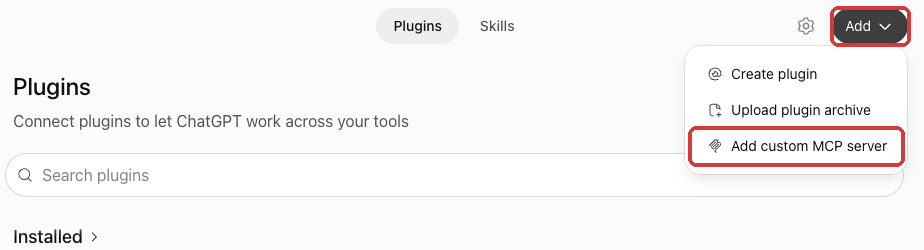
- On chatgpt.com, open Plugins in the sidebar, click Add, then “Add custom MCP server”.
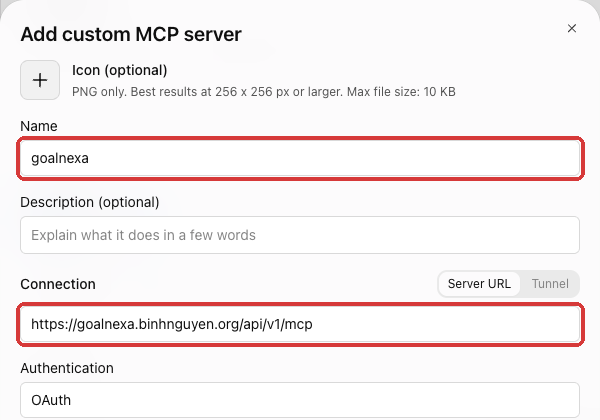
- Name:
goalnexa. Under Connection, keep Server URL and paste:https://goal.pmnexa.com/api/v1/mcp
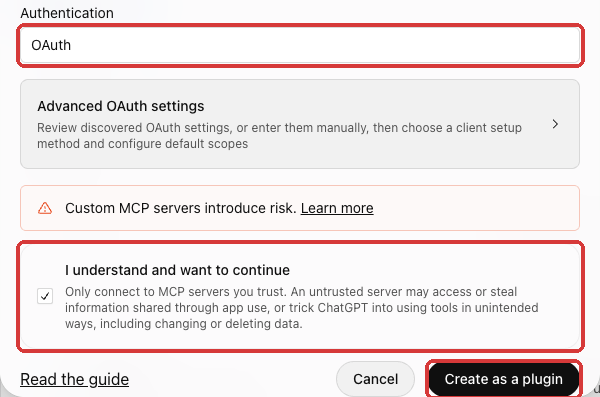
- Authentication: OAuth. Tick “I understand and want to continue”, then click “Create as a plugin”.
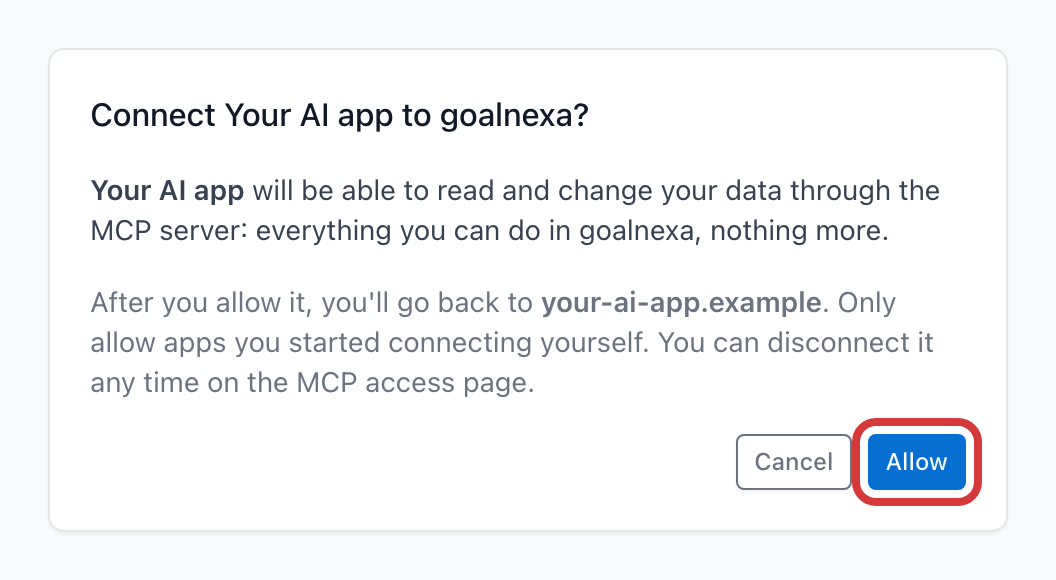
- A window opens on GoalNexa: sign in if asked, then click Allow.
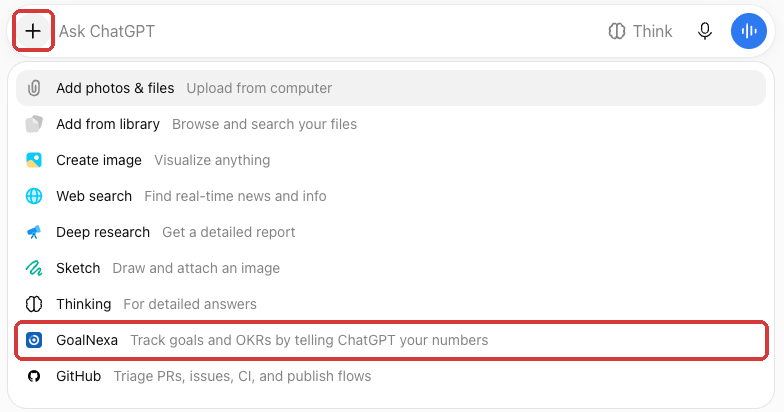
- In a chat, click + and pick the app, or name it in your prompt. ChatGPT asks before each change.
- Optional: ask your assistant to
Install the goalnexa skills from https://goal.pmnexa.com/api/v1/mcp/skills- it then knows how to plan, check in and review.
Check it worked: Plugins lists it under Installed, and it's listed under Connected apps on the MCP access page.
Things to try
- "I want to run a half marathon by November - set it up as a goal."
- "Ran 12 km this morning."
- "We're at 420 beta users."
- "How are my goals doing this week?"
ChatGPT acts as you, with exactly your access, and answers in your language. Check-ins it makes are marked "AI agent" in the goal's activity. Revoke access any time on the MCP access page.
Troubleshooting
- No Plugins page or no “Add custom MCP server”: older accounts have it under Settings → Apps → Advanced settings → Developer mode, then Create.
- It reads but never changes anything: check the app's permission under Settings → Plugins (“Allow low-risk tools” asks before changes).
- Connected but never used: pick it from + in that chat, or name it in your prompt.
Other assistants
Claude · Gemini · Cursor · VS Code · Windsurf · Claude Code · Codex CLI · Gemini CLI · Claude Desktop · All guides
Support
Stuck? Email xuanbinh91@gmail.com or see the contact page.